
Timer
Timer is a timer widget, good for live-segment countdowns, time-limited challenge extensions, whole-session timing displays, and any other interaction where viewers need to see the time at a glance.
A live room can run multiple timers at the same time (up to 20). Each timer picks its own type and runs independently.
Timer Types#
| Type | What it is for |
|---|---|
Countdown |
Counts down from a set duration; shows the end text and plays a sound when it finishes |
Marathon |
Starts from an initial duration that you can adjust manually, and that likes, follows, and gifts can also extend automatically |
Stopwatch |
Counts up from 0 |
Clock |
Shows the current local time; supports the Analog style |
Overall Layout#
By interface function, you can understand Timer as the following three areas:
My Timers: the timer list. Each entry shows its name, type, and running state, withStart/Pause,Reset, and delete buttons;New Timeris the entry at the topTimer Settings: the configuration form for the selected timer; changes are saved automatically- Widget preview: a live preview of the selected timer
The left side is the timer list. Whichever entry you select, the settings and preview on the right follow it.
At the bottom, you can copy the widget link for the selected timer.
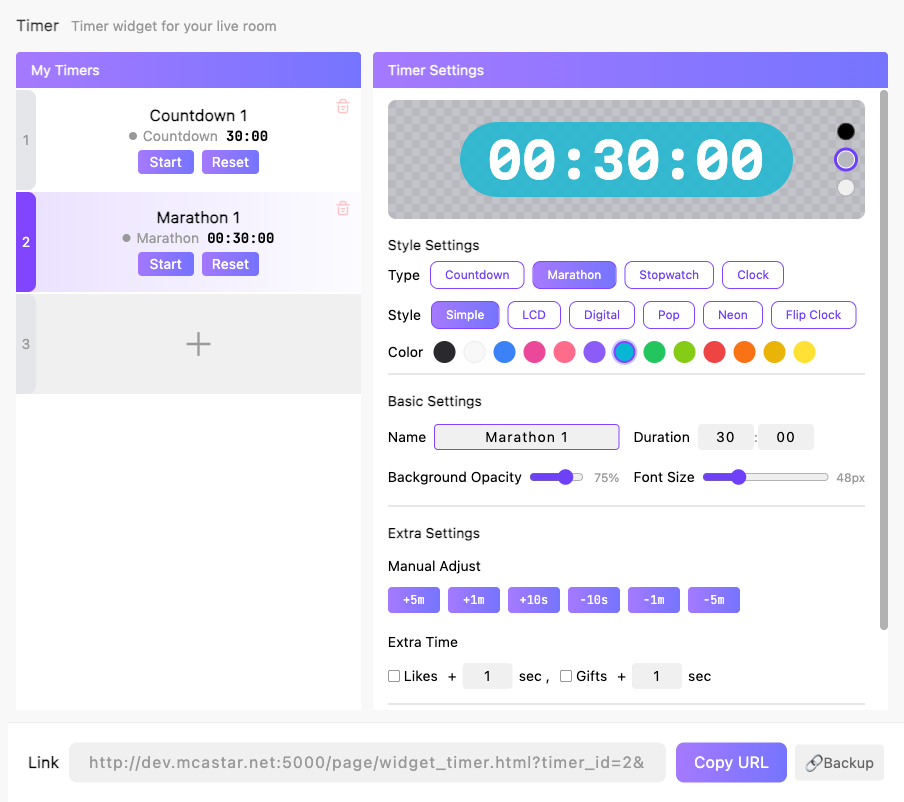
Setting Details#
Style Settings#
| Setting | What it does | When to change it | Notes |
|---|---|---|---|
Type |
Switches the timer type | - | The type is locked while a timer is running; Reset it first |
Style |
Selects the visual style of the widget | - | Simple LCD Digital Pop Neon Flip Clock Flame work for all types; Circle is for Countdown only; Analog is for Clock only |
Color |
Selects the widget color scheme | - | 12-color palette |
Font Size |
Adjusts the digit size | Adjust it when the widget takes up too much or too little of the frame | 24-120 |
Background Opacity |
Adjusts how opaque the widget background is | Lower it when you want the timer to blend into the live frame | 0-100 |
Basic Settings#
| Setting | What it does | When to change it | Notes |
|---|---|---|---|
Name |
Sets the timer name, used to tell timers apart in the list | Recommended when you keep several timers | Defaults to "type name + number" |
Duration |
Sets the starting time (minutes + seconds) for Countdown / Marathon | - | For Marathon, Duration cannot exceed Add Limit |
Extra Settings#
Different settings appear depending on the type:
| Setting | Applies to | What it does | Notes |
|---|---|---|---|
End Text |
Countdown | The text the widget shows after the countdown ends | - |
Warning Color |
Countdown | The digits turn red as a reminder once the remaining time enters the threshold | Threshold 0-300 seconds |
End Sound |
Countdown | Plays a sound when the countdown ends | Volume is adjustable and supports Test |
Extra Time |
Marathon | Configures automatic time-extension rules for likes, follows, and gifts | Each rule can be toggled independently; see below |
Show Hours |
Stopwatch | Whether the hours digits are shown | - |
Show Seconds |
Clock | Whether seconds are shown | - |
12-Hour Format |
Clock | Switches between 12-hour and 24-hour format | - |
The three rules of Extra Time:
| Rule | Meaning |
|---|---|
Follow |
Adds N extra seconds for each new follower |
Likes |
Adds N extra seconds for every N accumulated likes |
Gifts |
Adds N extra seconds for every 1 coin gifted |
The extension limit
Add Limit in Safety Protection caps the total time a Marathon timer can accumulate, preventing viewers from extending it endlessly.
Manual Adjust#
While a Marathon is running, you can use the Manual Adjust buttons to quickly apply +300 +60 +10 -10 -60 -300 seconds — handy when the host announces something like "let's add 5 more minutes for everyone".
Run Controls#
| Action | Meaning |
|---|---|
Start |
Starts the timer; the countdown / marathon / stopwatch starts ticking |
Pause |
Pauses ticking; the elapsed time is kept |
Reset |
Returns to the initial state (Countdown returns to the initial duration; Stopwatch returns to zero) |
Delete |
Removes the timer |
New Timer |
Creates a new timer and opens its settings |
Deleting requires confirmation
A confirmation dialog appears before a timer is deleted. Once confirmed, the corresponding widget stops showing immediately.
Using it in your streaming tool
You need to copy the widget link for the timer and load it into your streaming tool.
Each timer has its own link, so you can load only the ones you need. Configuration changes sync to the widget in real time; there is no need to copy the link again.